
Remote attendees experience your seminar through its sound, camera views, shared content and opportunities to participate. A comfortable room and an impressive screen help the people onsite, but they do not automatically create a useful experience online.
When selecting a hybrid seminar venue in Singapore, assess the complete journey from the presenter’s microphone to the remote attendee’s device. Then test the return journey: can someone joining remotely ask a question and be heard clearly in the room?
That practical approach reveals what the venue provides, what needs additional equipment and who must manage the session.
Define How Remote Attendees Will Participate
Start with the programme rather than an equipment list. A seminar streamed to passive viewers needs a different setup from a workshop involving remote speakers, audience questions and group discussions.
Write a short brief covering:
- Expected onsite and remote attendance.
- Whether remote participants can speak, type questions or both.
- Presentations, videos, demonstrations and panel discussions.
- Breakout activities and how online guests will join them.
- Recording, captions and post-event access requirements.
Use this brief when enquiring about The Landmark’s corporate event and seminar venue options. It gives the venue team a specific event to assess and helps separate standard package provisions from additional production requirements.
Verify the Internet Connection Where Production Will Sit
“Wi-Fi available” does not establish whether a venue can support your particular broadcast.
Ask about a wired connection at the production desk, available upload capacity and whether the connection is shared with guests or other events. Upload performance matters because the venue must send sound, video and presentations to remote participants.
Have your technical operator check the connection against the selected platform’s requirements, with headroom for the planned feeds. Test stability during a realistic call instead of relying only on a speed-test result.
Confirm any login restrictions or network settings that could interrupt the session. Agree on a backup connection and test how the operator will switch to it. The contingency is useful only if someone can activate it promptly.
Make Every Contribution Audible Online
Sound should be the first production priority. Remote attendees need clear speech from the presenter, panellists and audience members asking questions.
A laptop microphone placed near the stage is rarely an adequate plan for a seminar room. Ask how the room’s microphones will feed into the online session and how remote speakers will play through the room’s loudspeakers.
The operator should configure the audio so remote participants do not receive their own voices back as an echo. Avoid having multiple nearby laptops join with their microphones and speakers active.
Provide a roving microphone for onsite questions. If someone speaks without it, the moderator should repeat the question into a live microphone before the presenter answers.
During the site visit, listen for air-conditioning noise, adjoining events and catering activity that could interfere with speech.
Show the Speaker and Share the Content Directly
Remote viewers need a useful view of the presenter, not a distant shot of the whole room.
Check camera positions against the speaker’s likely movements. A single fixed camera may suit a lectern presentation; a panel or demonstration may require another angle and an operator to change views.
Share presentation slides directly into the online session instead of filming the venue screen. Test embedded videos with their sound, and check that demonstrations remain readable on a smaller display.
Lighting needs its own check. A presenter standing against bright windows can appear dark on camera even when the room looks pleasant in person.
If remote speakers are involved, position their onscreen image where the onsite audience can see it comfortably.
Plan the Room Around Production Needs
Camera tripods, technical desks, cables and additional displays take space. Confirm the usable seating capacity after these are included.
The Landmark’s venue layouts and capacities distinguish between different seating arrangements. Use the layout relevant to your seminar, then ask for a floor plan showing production positions, clear aisles and unobstructed camera views.
Check power access at the equipment positions rather than assuming nearby sockets will be sufficient. Agree on safe cable routes and the location of any additional lighting.
Position registration and refreshments so late arrivals or coffee service do not repeatedly cross the camera shot. Keep doors near the presentation area closed during speaking segments where practical, with staff managing access.
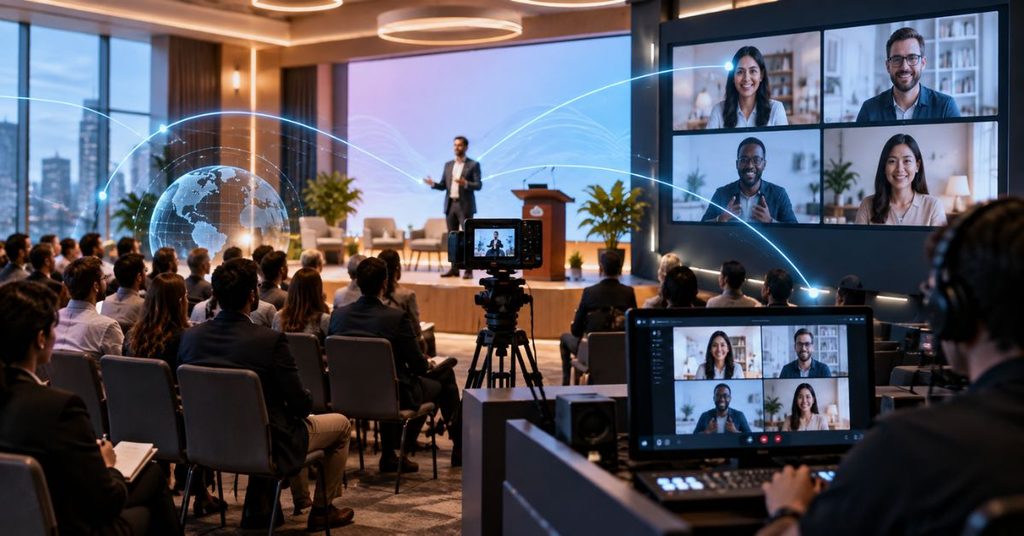
Give Remote Attendees a Route Into the Discussion
A visible chat window is not a participation plan. Assign a moderator to monitor online questions and bring them into the live conversation.
Tell participants how questions will be selected and when they will be answered. Ask the presenter to pause regularly rather than saving all online contributions until the final minutes.
For polls or shared activities, provide one method that both audiences can access. If the programme includes table discussions, organise equivalent online groups with clear instructions and someone responsible for facilitating them.
Display break times and the next start time for remote viewers. For participants joining from outside Singapore, label the agenda with Singapore time and the UTC+8 offset.
Build Accessibility Into the Session
Ask about access needs during registration so there is time to arrange suitable support.
Plan captions and test them with the actual audio feed. Where accurate terminology is essential, consider professional captioning support and provide relevant vocabulary beforehand.
Share accessible slides or supporting documents in advance. Encourage presenters to explain meaningful charts and demonstrations aloud, rather than relying on phrases such as “as you can see here”.
Make instructions available in writing as well as spoken announcements. If sign-language interpretation is required, confirm that the online layout can keep the interpreter visible.
Before recording, explain what will be captured and how access will be managed. Agree internally on storage, retention and responsibility for the finished recording.
Confirm the Package, Operator and Rehearsal
The Landmark’s published 2026 seminar package brochure lists Wi-Fi, an LED screen and complimentary use of a basic AV sound system. These are useful starting facilities, but the brochure does not establish that cameras, streaming equipment, dedicated connectivity or a hybrid operator are included.
Request an itemised proposal covering the additional requirements. Name the person responsible for technical operation and a separate moderator where participation demands it.
Book rehearsal access and run the actual programme sequence with someone joining from another location. Test presentation changes, videos, remote speakers, questions and the backup connection.
Agree on what happens if the stream fails: who informs attendees, where updates appear and whether a local recording can preserve the session.
Frequently Asked Questions
1. Is standard venue Wi-Fi enough for a hybrid seminar?
Possibly, but it needs testing. Confirm upload performance, stability, network sharing and compatibility with your platform. Ask whether a wired production connection is available.
2. Does a basic AV package include livestreaming?
Do not assume so. Request explicit confirmation of cameras, audio connections, streaming equipment, platform arrangements and technical staffing.
3. How many cameras will we need?
That depends on the programme. A fixed presenter may need one; panels, demonstrations and movement can require additional views.
4. Do remote attendees count towards catering minimums?
Confirm this in the quotation. Separate onsite catering numbers from online attendance and any platform or production charges.